Status of this post: COD 3.8.5, November 2026. Later versions may differ. For the current feature status see the roadmap.
In most organisations, every tool works well on its own. The switch has its operating system. Monitoring has Zabbix. The firewall has its interface. The risk register lives in a spreadsheet. The problem sits in between. The same device appears in five lists, and none of them knows about the others.
For COD, this is the core. The manual puts it this way: COD is not a set of independent tools that happen to share a login. Almost every module hangs off the same inventory. We call that connection. The single modules are good. What lies between them makes it more.
What we mean by that
Four things hold COD together:
- the asset, the device or entry in the inventory, as a shared point of reference
- the location, chosen in the header, which filters almost every module
- a global search across several modules
- an audit that shows changes across the modules
Not every connection goes equally deep. That is why this post counts only what we have seen ourselves on screen. All examples come from the demo (COD 3.8, as of 4 November 2026).
What you have stays
We replace nothing you want to keep. What you have stays. This is the most important sentence in this post. Your Zabbix keeps running. Your firewalls, your vCenter, your directory, your CMDB and your ticket system keep running. COD connects them on an asset basis. Where something is missing, such as a vault, access control or configuration backup, COD brings building blocks of its own. They fit in.
Example 1: One device and everything attached to it
In the demo, open the asset KAT-FW-01 and switch to the "References" tab. It lists what points at this device: the entry in the firewall module, the host in Zabbix, the voucher configuration for guest access and two to-dos, both already finished. Three of these references carry the tag "Blocks delete". They prevent deletion as long as they exist. With the account Demo GRC, a business process joins them that hangs on the device through an asset group.
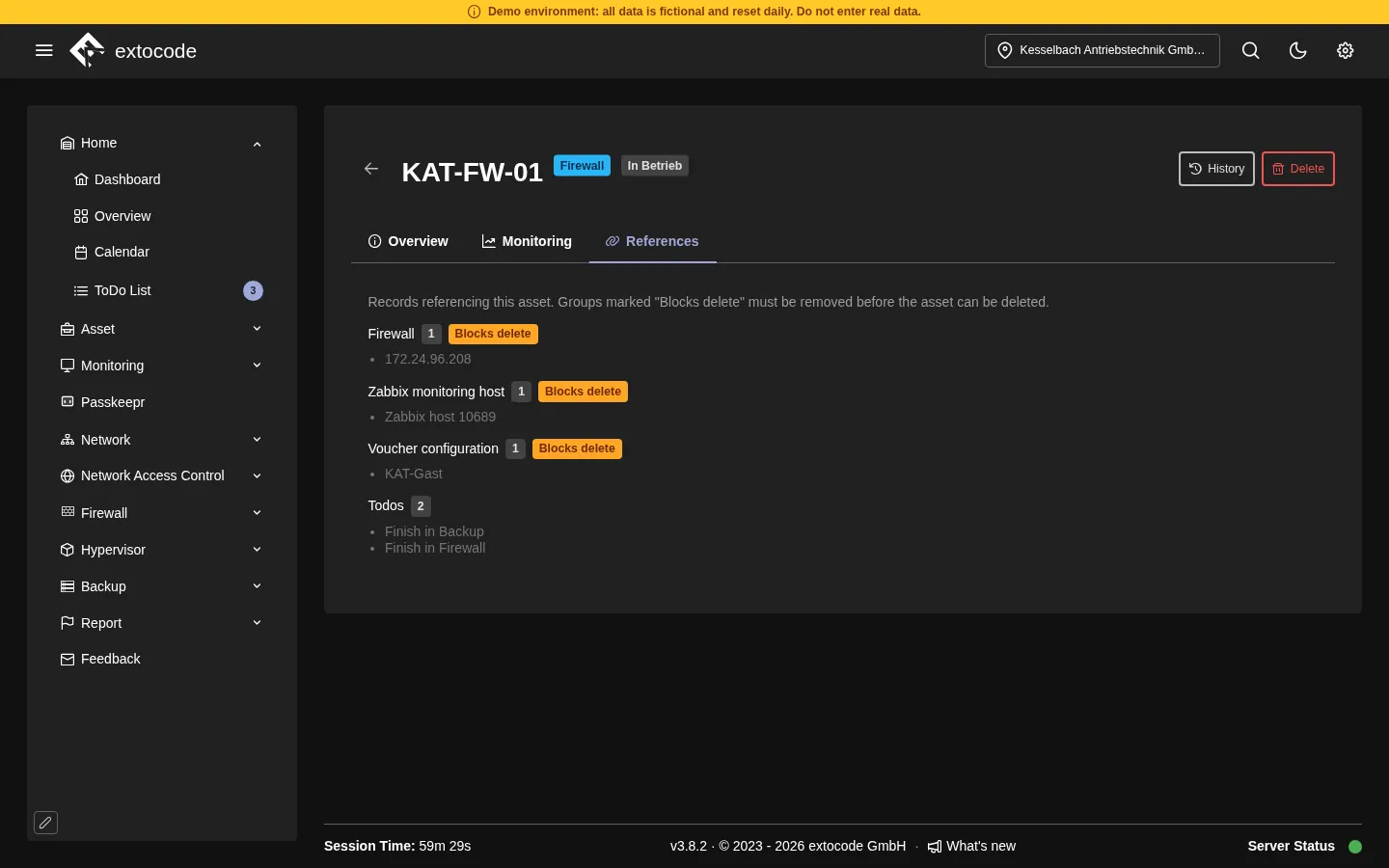
Anyone who wants to replace or delete a device sees beforehand what is attached to it. The information sits in one place.
Example 2: One search across several modules
With the magnifier or Ctrl+K you search by name, IP or MAC. In the demo, a search for "sw" returns hits from seven categories: network devices, topology, subnet planner, assets, hypervisor, calendar and active ports inventory. A search for "fw" returns five, including the firewalls. A click on the hit opens the record.
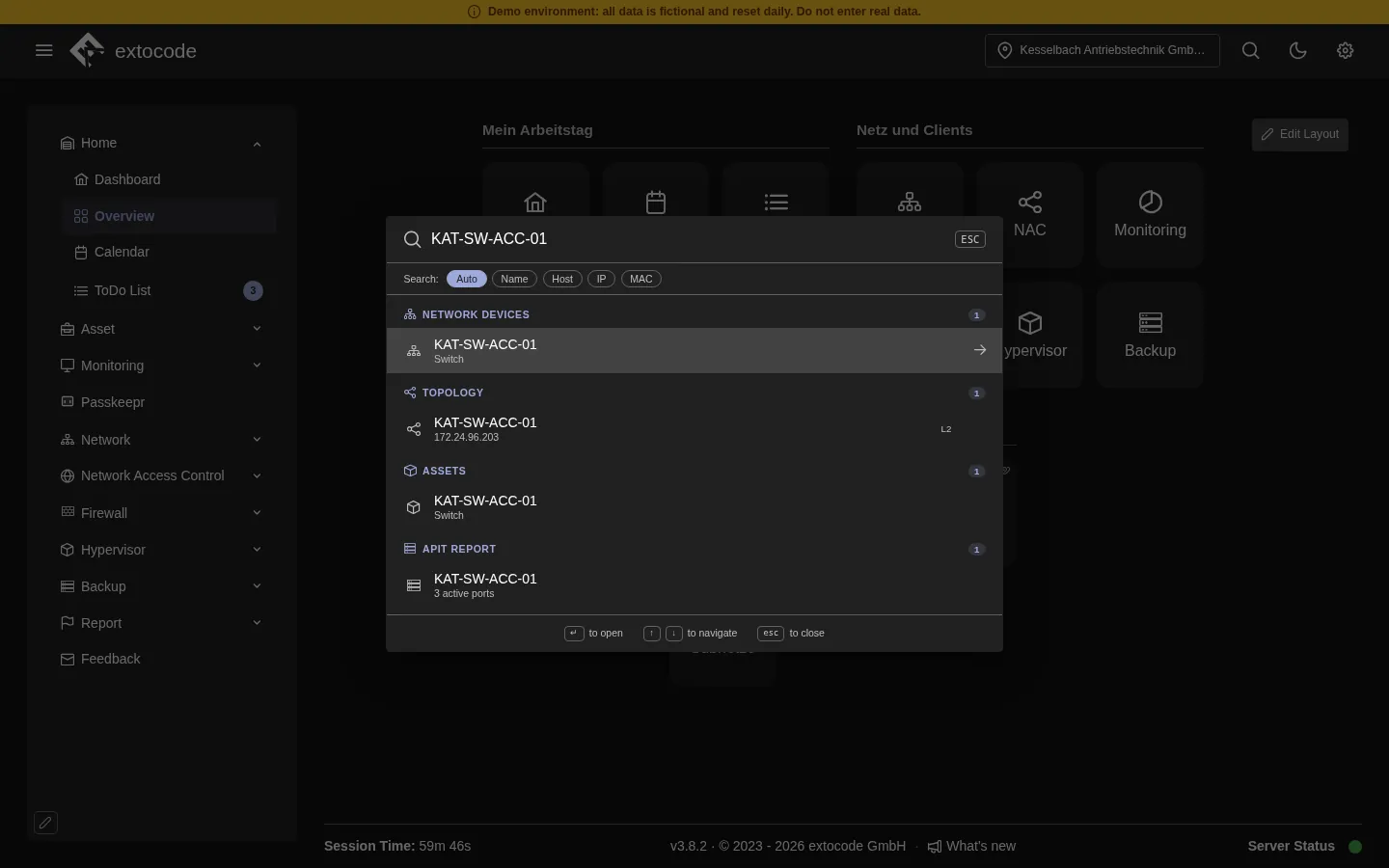
The search does not replace knowing where something lives. It saves the walk there. It applies to the location you have chosen. It does not search NAC, TACACS+, backup and monitoring, for example.
Example 3: At the switch port you see what RADIUS reported
"The device does not get onto the network." Until now that means: look at the switch first, then at the RADIUS log. In COD you open the row of a client in the Client Overview. The dialog shows the port map of the switch. Below it, "NAC sessions" lists user, MAC, IP, NAS, port, start, stop and duration. Next to it you see the history of this client, that is MAC, IP, neighbour and link changes. COD keeps this history for 90 days by default.
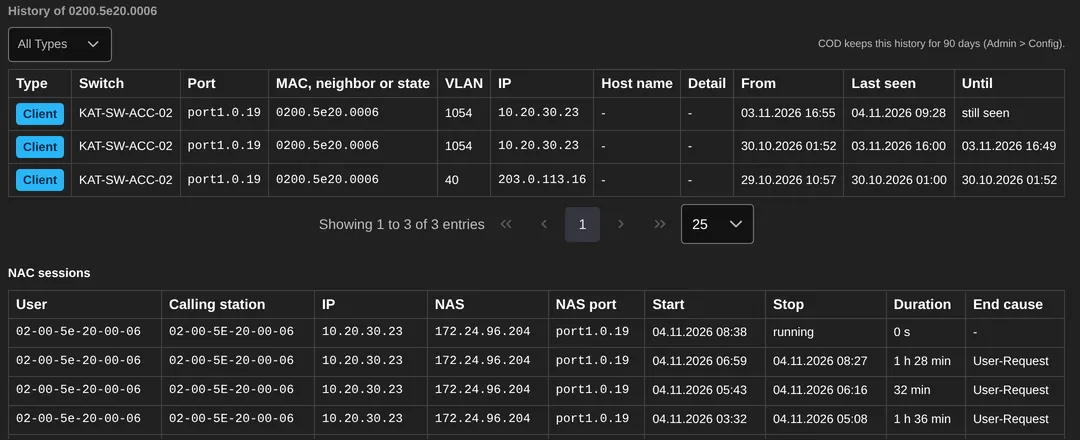
So the answer from RADIUS sits next to the switch port. This holds as long as the switch sends RADIUS from its management address.
Example 4: From the device to the risk and the process
In GRC, processes, asset groups, assets and suppliers sit in registers. In the demo there are 17 processes, 12 asset groups, 124 assets and 13 suppliers. Links between them pass a level on. The level of an asset group comes from its risk assessment. From the level of a supplier, COD works out which evidence is required.
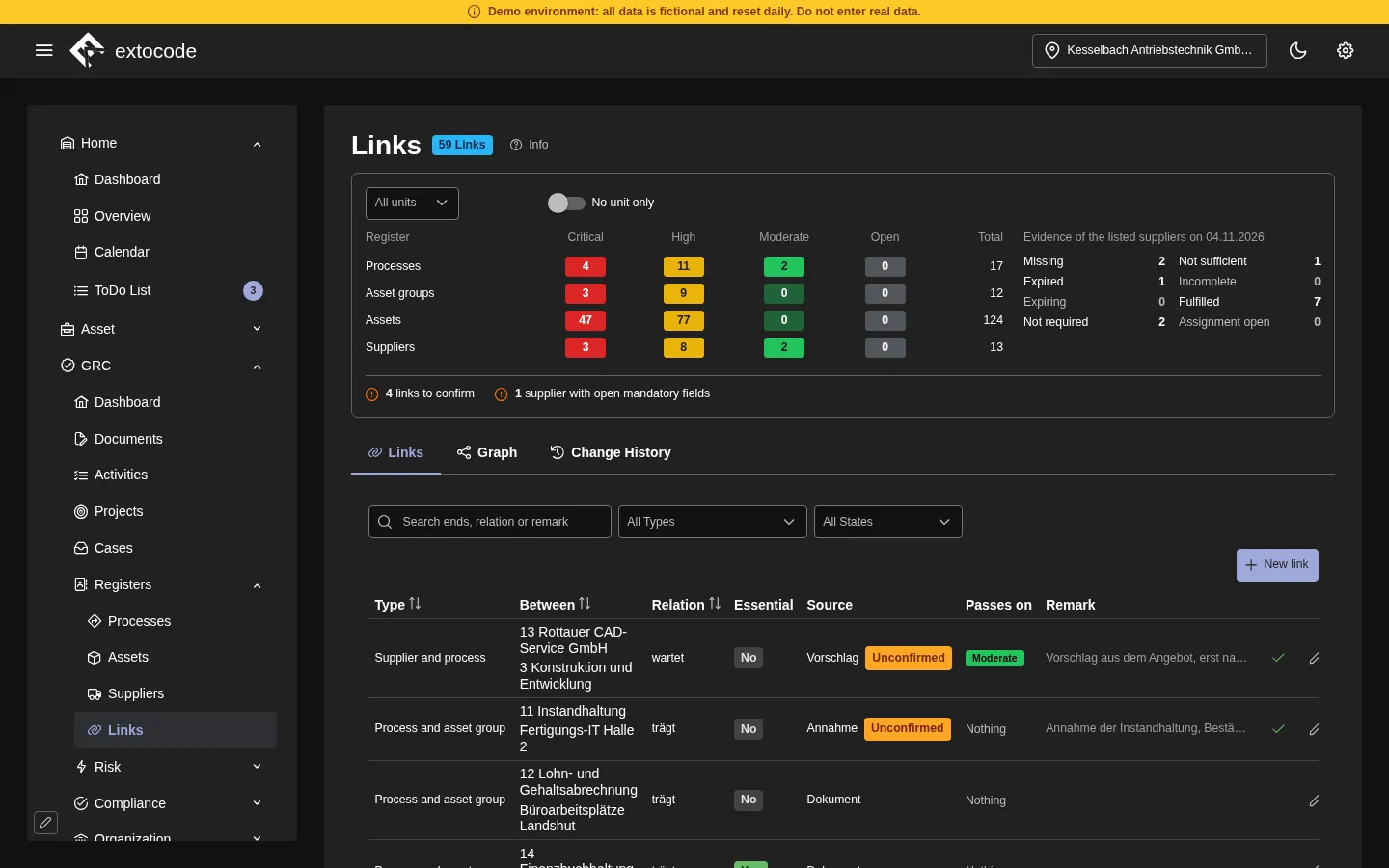
That answers a question that otherwise needs a meeting: which outage hits which process? Anyone who opens the GRC account of the demo also sees tabs on the device for Placement, Connectivity, Contacts, Contracts and Dependencies. When something breaks, the contact persons are at the device. Contracts have a tab of their own, and the demo has none on file. An account needs the right for the GRC module to see this.
Example 5: Maintenance in the same calendar
Maintenance windows of the firewall create entries in the COD calendar. In the demo, a search for "fw" finds the entry "KAT-FW-02 Reboot". Maintenance sits next to the dates that are in the calendar anyway. The entry in the demo carries a date from 2025. It shows the connection, not an upcoming appointment.
How deep the connections go
Not every module is connected to every other. Anyone who introduces COD should know that beforehand. The manual itself says which connections are real and which only look real. We follow it and name only the first kind here. If you want to know whether a specific connection holds in your case, ask us. We show it on screen.
What you get
- Fewer trips between tools. The answer is often already in the module you are working in.
- One shared point of reference for operations and information security. The same device, the same name.
- Your existing tools stay. COD does not rebuild them, it connects them.
See it yourself
Examples 1 to 3 and 5 work with the account Demo First Level. In example 1, only the account Demo GRC also shows the business process. Example 4 needs Demo GRC. The access details are on extocode.com/demo. All visitors share the accounts. Please do not enter real data. The interface is in English, the sample data is mostly German.
Which functions your contract covers follows solely from the service description in the version that applies to your contract.
- Demo: cod.demo.extocode.com
- Personal walkthrough: contact us
extocode GmbH · Central Operations Dashboard